Calculating arrival date




Printer Resetting 101: By Reset Type and Brand
Posted by Rob Errera on 06/02/2026
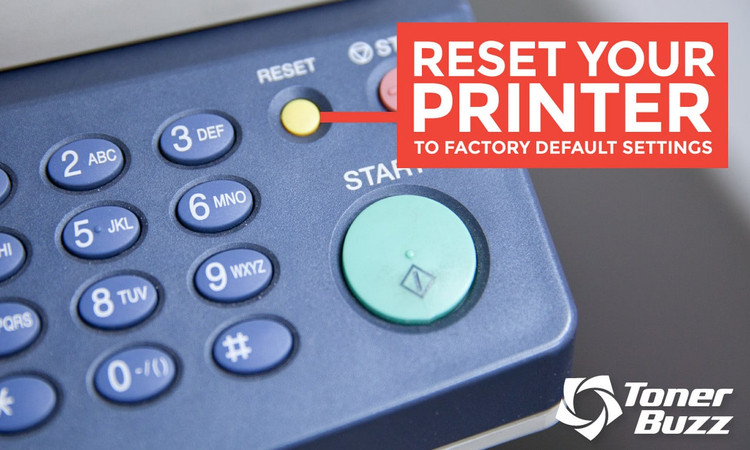
If your printer is experiencing persistent issues like network connection errors, paper feed problems, or other glitches, resetting it may help.
Different reset options can resolve different issues, and the steps vary depending on your printer brand and model.
In this guide, we'll explain the available reset types and show you how to reset printers from popular brands.
How To Reset an HP Printer
➜ How To Reset HP Printer to Factory Settings
According to HP, restoring the factory-set defaults on your printer will not reset the page count, tray size, or language.
To restore your HP printer to factory-default settings, follow these steps.
- Turn the printer off. Disconnect the power cable from the printer for 30 seconds and then reconnect.
- Turn the printer on while you press and hold the Resume
button for 10-20 seconds. The Attention
light turns on.
- Release the Resume
button. The Attention
and Ready
lights cycle while the printer restores factory defaults.
➜ HP Printer “Out Of Paper” Reset
We love our HP printer except when there’s an erroneous message about the paper being empty.
There are plenty of sheets in the paper tray...why doesn’t the computer see that?
One solution to this problem is to reset your HP printer by unplugging it.
It’s a pretty simple process:
- With the printer turned on, pull out the power cable from the back of the printer
- Unplug the power cable from the wall outlet
- Wait 15 seconds
- Plug the power cable into the back of the printer
- Plug the printer back into the wall outlet
- Turn the printer back on
- Run a test print
Following these steps will reset your HP printer’s “out of paper” message.
➜ How To Reset The Password On Your HP Printer
There are two common ways to reset or change the password on an HP printer, depending on whether you know the current administrator password.
✔ Method 1: Change the Current Password
- Open a web browser.
- Enter your HP printer's IP address into the address bar.
- Sign in to the printer's Embedded Web Server (EWS).
- Open the Security, Settings, or Administrator section.
- Enter and save your new administrator password.
✔ Method 2: Reset the Printer and Create a New Password
- Restore your HP printer's network or factory default settings from the printer's control panel.
- Wait for the printer to restart.
- Reconnect the printer to your network using the HP Smart app or the printer's setup menu.
- Open a web browser and enter your printer's IP address.
- Create a new administrator password if prompted.
The available menu options and reset steps may vary depending on your HP printer model.
How To Reset Canon Printer
➜ How To Reset Your Canon To Factory Settings
You may want to reset your Canon printer to its factory default settings.
This can help if your printer is experiencing errors or other unexpected issues, as it restores the original settings.
Here's how to reset a Canon printer to its factory settings:
- Press the Menu button on the front of the printer.
- Use the arrow buttons to locate Setup Menu and select OK.
- Use the arrow buttons to select Device Settings and select OK.
- Select Reset Settings and select OK.
This will begin the process to reset your Canon to its factory settings.
Resetting your Canon printer to its factory default settings can help resolve some printer issues and restore the original settings. If your printer continues to display the B200 error after the reset, it may require servicing.
Similar factory reset options are available on many Canon printer models, although the menu options may vary by model.
➜ Hard Reset Canon Printer
Canon printers sometimes give you a strange error message. The easiest way to get rid of it is performing a hard reset.
How do I hard reset a Canon printer?
- Power the printer down.
- Press and hold the Stop button while pressing the On button.
- Release the Stop button while continuing to hold the On button.
- Press the Stop button five times in a row.
- Release the On button.
Give your Canon a few seconds to reset itself.
Note: These steps apply only to certain Canon printer models that support this reset method.
How To Reset Brother Printers
➜ How To Factory Reset a Brother Printer With a Display
- Press Menu, Settings, or All Settings on the printer.
- Navigate to Initial Setup or General Setup, then select Reset or Factory Reset.
- Choose the reset option, confirm Yes or OK, and wait for the printer to restart.
How To Factory Reset Brother MFC-L2710DW Printer
Important Note: Brother printers without a display do not use a universal factory reset procedure. The exact steps vary depending on the printer model. Refer to your printer's user guide for the correct factory reset instructions.
➜ How To Reset The Password On A Brother Printer
You may need to reset a Brother printer password. This password allows access to the Brother network card, BRAdmn, Remote Setup and Web Based Management.
Your default Brother password will be located on either the back or bottom of your printer preceded by the letters “Pwd.” If you cannot find a password on the printer itself, the default Brother password is, “Initpass.”
Brother recommends you change the password on your printer.
To reset the password on your Brother printer:
- Open a web browser
- Type http://<your printer's IP address> into the address bar.
- How to find your IP address
- Print the Network Configuration Report or Network Configuration Page from your Brother printer. You can also find the printer's IP address from your router's list of connected devices or, on models with a display, from the Network or WLAN settings menu.
- Type your printer’s default password and enter to log in
- Select the “Administrator” tab. (If there is no “Administrator” tab, select “Login Password.”)
- Type a new password into the “Enter New Password” field. (Store and remember your password. Brother is unable to recover forgotten passwords, so you’ll need to reset the printer to factory default settings if your password is lost.)
- Re-type your new password in the “Confirm New Password” field.
- Click “Submit.”
This is how to perform a Brother printer password reset.
➜ How To Reset The Drum Counter On A Brother Printer
If you replace the drum unit on a Brother printer, you have to reset the page counter back to zero by resetting the printer drum.
- To reset the drum unit on a Brother printer:
- Press the “Settings” button
- Press “All settings” (if applicable)
- Select Machine Information
- Select Parts Life
- Press and hold the Drum/Drum Life button until the display on the printer changes
- Select “Yes”
- Press “Home”
This will reset the drum counter on your Brother printer.
How To Reset To Default All Lexmark Printers
➜ How To Reset Factory Default Settings for Lexmark Printers:
1. Press the Menu > button on the operator panel until Utilities Menu (or Tests Menu) appears on the display.
2. Press the Select button once to enter the menu.
3. Press the Menu > button until Factory Defaults appears on the display.
4. Press the Select button. You should see = Restore on the display.
5. Press the Select button once more to change the printer's settings to the original factory values.
To reset the printer's non-volatile RAM (NVRAM): The procedure described below activates a "soft" NVRAM reset, which means that vital printer information will not be deleted.
1. Power the printer off completely.
2. While the power is off, simultaneously hold down the Menu>, Go, and Select buttons.
3. While still holding down the buttons, power the printer back on. Release the buttons when Restoring Factory Defaults appears on the display.
4. Allow the printer to warm up as normal.
NOTE: Neither of the above procedures (restoring the factory defaults, clearing the NVRAM) should reset the network card settings.
How To Reset Factory Default Settings for Ricoh Printers
1. Back up address books stored in the Ricoh copier settings. Resetting to factory defaults will erase all stored data.
2. Press the “./*” key and the “#” key on the Ricoh copier at the same time and hold for 10 seconds. The copier will shut down and begin to re-boot. During this process, the Ricoh is resetting itself to factory default settings.
3. Test to make sure the process worked. Go through the menu options on the screen and see if your old settings have been replaced and your address books have been cleared. If this is the case, your Ricoh copier has been reset to factory defaults.
Resetting RICOH Printers - MP171 SPF, gw2004
How To Reset Factory Default Settings for Samsung Printers
Samsung Printers also offer three different reset options.
➜ Basic Resetting
- You have to press the keys in quick succession MENU # 1 9 3 4. The display will show TECH.
- Select the MENU key again followed by ENTER. The display will show TECH MODE.
- Press the < key two times. The operator panel will show NEW CARTRIDGE.
- Select ENTER. The panel will show YES.
- Press ENTER again.
- Exit from this mode by pressing MENU # 1 9 3 4 again.
➜ Using Raw and Simple Package
The Raw Package contains original firmware upgrades from Samsung with the patches and firmware downloads. Using this package you will need to run the complete steps.
The Simple Package contains the patched version of firmware so you only need to run the final step.
- Run the firmware downloader. DO NOT turn off or disconnect the printer/computer during this process.
- To exit the downloader, press any key turn off your printer for about 10 seconds and turn it back on.
➜ Manual Reset
- Push the power button until the LED light turns off.
- Remove the power cord from the back of the printer and leave the printer unplugged for at least five to 10 minutes.
- Plug the printer back in.
- Press and hold the stop button for two to three seconds until the demo page begins to print.
Resetting Samsung Xpress Printers: M2070, M2070F, M2070FW
How To Reset Factory Default Settings for Panasonic Printers
➜ Reset with Network Setup Tool
- Display the Network Setup Tool.
- Click the printer you want to set up in the list.
- Click the Setup menu, then click Network Factory Default.
- Click [Yes].
- Enter the password and click [OK].
- Click [Yes] to restart the printer.
➜ Reset with Printer Panel
- Press MENU/EXIT (Pause) button on the printer panel.
- Press CONTINUE button until NW Protocol Setup menu appears.
- Press ENTER button.
- Press CONTINUE button until Factory Reset appears.
- Press ENTER button.
- Press CONTINUE button to select Yes.
- Press ENTER button.
How to Rebuild and Reset Panasonic Drum KX MB2085 for KX MB2000, MB2010, MB2025, MB2030, MB2061, MB2062
How To Reset Factory Default Settings for Oki Printers
➜ Windows Users
- Run the printer menu setup tool.
- Click [+] to the left of [Maintenance Menu].3. Click [MENU RESET], and then click the [EXECUTE] button.
- Note - If resetting defaults on a network printer, click [+] to the left of [Network Menu].
- Click [FACTORY DEFAULTS], and then click the [EXECUTE] button.
➜ Mac OS X Users
- Run Menu Setup.
- Double-click [Applications] - [OKI DATA] - [MenuSetup] - [OKI B400 Printer Menu Setup Tool].
- Select the connection method, and then click [OK].
- Select the [Maintenance] tab.
- Click [EEPROM RESET].
How To Reset OKI MC342 With the OKI Printer Resetter
How To Reset Factory Default Settings for Sharp Printers
Navigate to the Power Reset screen on your computer. Here, you have two options:
Reboot the MFP — This restarts the machine. When you tap the [Execute] key, the Restart screen appears. When you tap the [Execute] key again, the machine will restart.
Enter The Power Save Mode — This shifts the machine to power save mode. When you tap the [Execute] key, the Power Save Mode screen appears. When you tap the [Execute] key again, the machine will switch to the Auto Power Shut-Off mode.
Tutorial On Resetting SHARP MX 2310U
How To Reset Epson Printers
➜ How To Reset Epson Printer to Factory Settings
You restore your Epson printer to its factory default settings through the printer’s control panel.
- Press the home button
- Select Setup
- Scroll and select System Administration (You may need an administrative password for this step)
- Scroll and select Restore Default Settings
- Selection one of the following reset options:
- Wi-Fi/Nework Settings
- Copy Settings
- Scan Settings
- Fax Settings
- Clear All Data and Settings
- Select the settings you want to reset and press “Yes” (Or “No” if you wish to cancel).
This should complete the factory reset of your Epson printer.
➜ Epson Printer Firmware Reset
Firmware updates are necessary to keep your printer software running smoothly. But occasionally you’ll download a firmware update that messes with your printer operation (especially if you’re using third-party ink or toner cartridges).
Fear not — it is possible to reset your firmware to a previous version. It’s called a firmware downgrade.
- Connect your printer to your computer with a USB cable.
- Remove all printer cartridges.
- The next step is opening the firmware update screen. The method depends on your printer model, but if you experiment a bit you’ll get the right combination. They usually begin with a long press of the stop button, followed by a three-button press. For example. On Epson XP-300 and XP-630 printers, you long press the stop button followed by pressing the Home, Power, and Left Arrow buttons together. Epson XP-440 and XP-640 models printers use a long press on the stop button followed by pressing the Left Arrow, Right Arrow, and Power buttons simultaneously. However, Epson XP-800 series printers require a long press of the power button and the top right corner of the touch screen together in order to bring up the firmware update screen.
- Once you’ve reached the firmware update screen, you will need to download the previous version of the firmware from the printer manufacturer’s website. Follow the instructions on your computer to complete the installation of the selected firmware.
- When the firmware update is finished, unplug your printer from the wall outlet to shut it down, and then plug it right back in.
- Turn your printer back on and reinstall your cartridges.
This should complete the firmware reset of your Epson printer.
➜ Reset Factory Default Setting on Epson XP-440 Printer
➜ How To Reset Factory Default Settings for Epson Workforce Pro Printers
- On the printer display home screen, navigate to the “settings” button.
- In the settings menu, scroll down to “reset default settings.”
- Choose which function that you want to reset. If you want to reset everything, select “Clear All Data and Settings.”
How To Reset Printer Spooler
In the Windows operating system, the print spooler is a holding pen for print jobs. The spooler lines the print job up in the order they are received.
The print spooler window can get pretty crowded if you’re sharing a printer in a busy office or classroom. If one print job jams the printer, everyone has to wait.
Sometimes the easiest solution is to restart the print spooler.
➜ Reset the print spooler: Windows 10
- Go to search
- Type “Task Manager” and hit Enter
- Go to Services
- Find the spooler file
- Right click the spooler file and select “Stop”
- Right click the spooler file again and select “Start”
This should reset the print spooler in Windows 10.
➜ Reset the print spooler: Windows 7
- On the Windows taskbar, click the search box
- Type “Admin” in the search box and hit Enter
- Click on “Administrative Tools”
- Double click “Services”
- Right click the spooler file and select “Stop”
- Right click the spooler file again and select “Start”
- Restart the computer and try to print a job.again
This is how to reset the print spooler in Windows 7.
➜ Reset the print spooler: Windows 8
- Go to search
- Type “Services” and hit Enter
- Click “View Local Services”
- Scroll down until you see “Print Spooler”
- Right click “Printer Spooler”
- Select “Restart”
Resetting The Printing System On A Mac
Mac computers are usually pretty well behaved but occasionally you will get a printer problem that proves stubborn. If this is the case, you will need to reset the Mac printing system.
To reset a Mac printing system:
- Open your System Preferences
- Click on printers and scanners
- Hold the Control key and click on the list of printers
- A pop-up menu will prompt you to reset the printing system
Once complete, you need to add your devices back into the main menu by clicking the large “+” button on the bottom of the printer list window.

Resetting the printing system on an Apple computer.
Finding Your Method
Hopefully you found the best method for restoring your printer’s factory default settings from our article and video bank. Did resetting your printer to the factory default settings solve your problems?
Let us know in the comments below!
https://support.brother.com/g/b/faqend.aspx?c=us&...
https://epson.com/faq/SPT_C11CD16201~faq-254125?f...
https://support.hp.com/us-en/document/c01963794
https://support.apple.com/

Rob Errera
Rob Errera is an award-winning journalist embedded in the world of printers and printing supplies. Rob has nearly two decades of experience writing about cutting edge technology, business trends, and the ever-evolving industry of printing.